

Why print shipping labels in bulk?
Creating labels one order at a time means re-typing addresses, re-entering package weights and re-checking rates for every parcel. When you ship more than a handful of orders a day, that repetition is where most of your fulfilment time goes, and where typing mistakes slip in.
In SellTrac your orders are already invoices with the customer's shipping address attached. Bulk label printing works from that data: you pick the orders, SellTrac builds the shipments, and you print every label together instead of opening a separate carrier website for each one.
From paid invoices to printed labels
A real batch from start to finish: four paid orders, one checkout and one print job. The screens are real SellTrac screens with sample customers.
-
Paid invoices
Select the paid orders and choose "Get Shipping Labels"
Every paid order waits in one list. Tick as many invoices as you want to ship, then pick "Get Shipping Labels" from the bulk actions once for all of them.
SellTrac · Manage Domestic Paid InvoicesReal SellTrac screen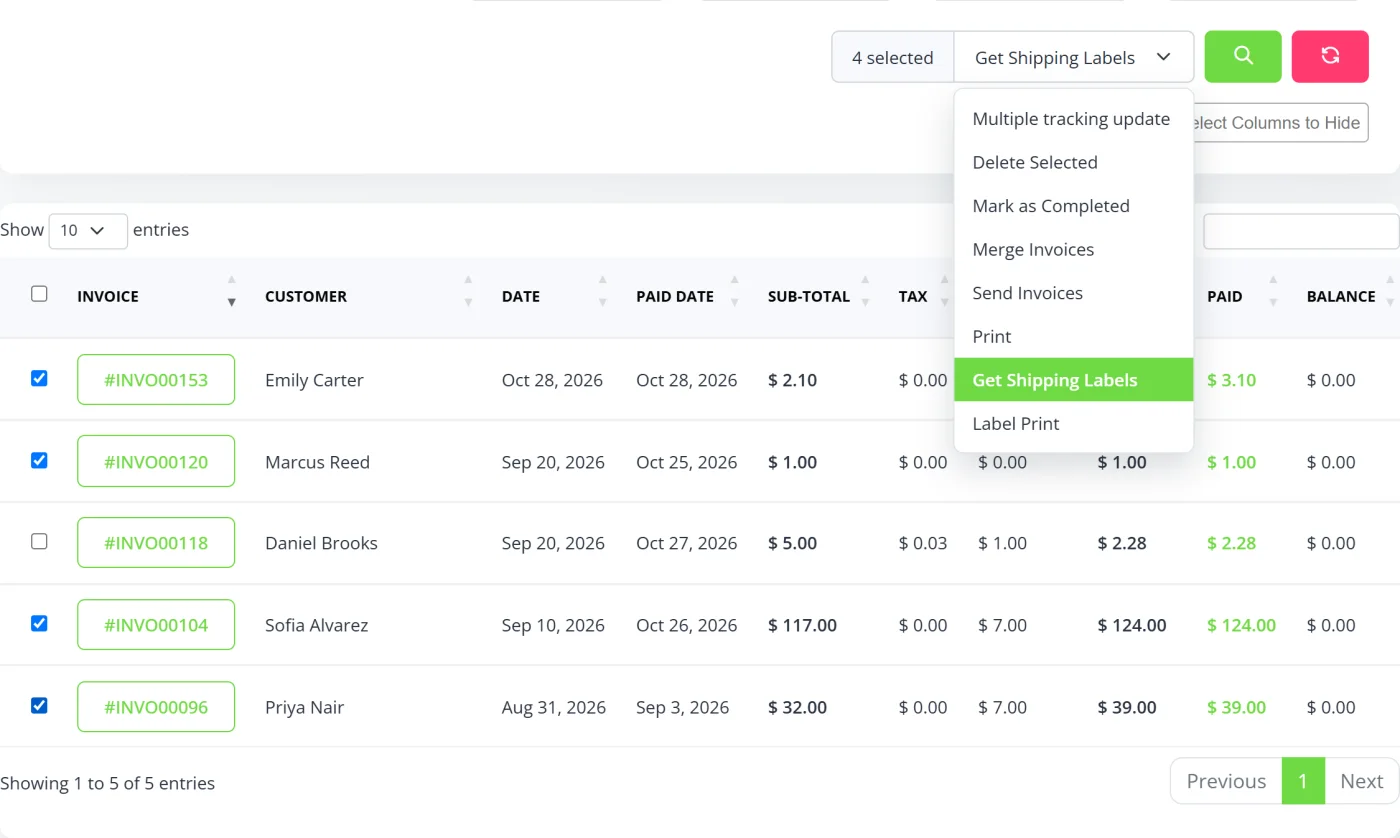 A
A
B
ATick the invoices to ship. The count updates as you go. BChoose "Get Shipping Labels" once for all of them. -
One window for the batch
Check the parcels and compare carrier rates
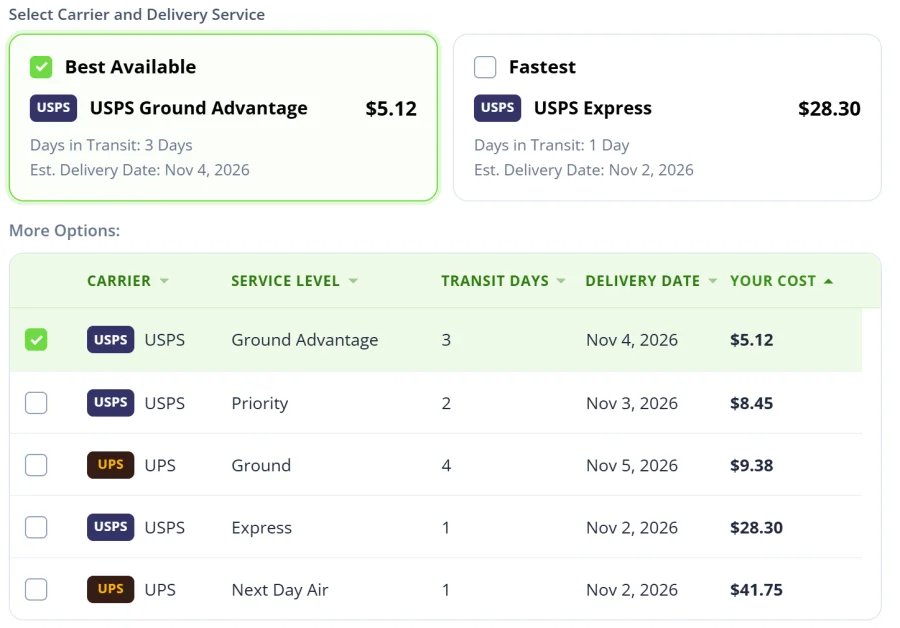
All the selected invoices open in one shipment window. Check each address and parcel, compare USPS and UPS services (cheapest first), and see the label total and your wallet balance before you buy.
SellTrac · Shipment · 4 invoicesReal SellTrac screenYour batch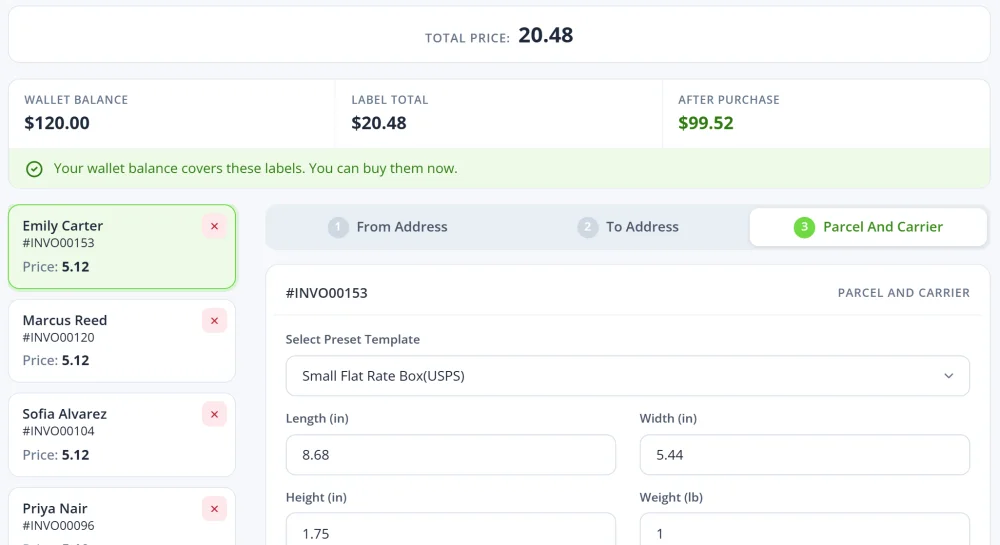 Carrier and delivery service
-
Labels generated
Buy every label in one checkout
Click "Buy Label" once. SellTrac buys a separate label for each invoice, pays for them together from your shipping wallet and confirms every one.
- Each tracking number is saved to its invoice
- Orders that need attention are listed separately, so one problem never blocks the batch
SellTrac · Shipment ResultReal SellTrac screen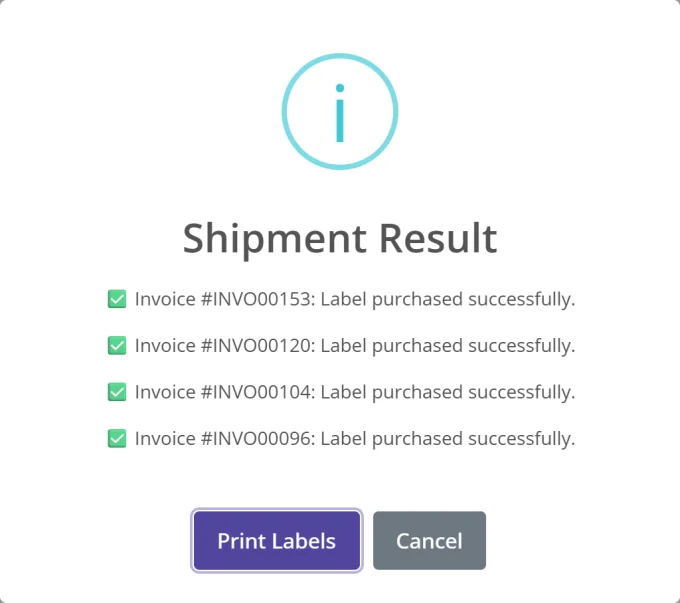
-
Print them all
Print every label together
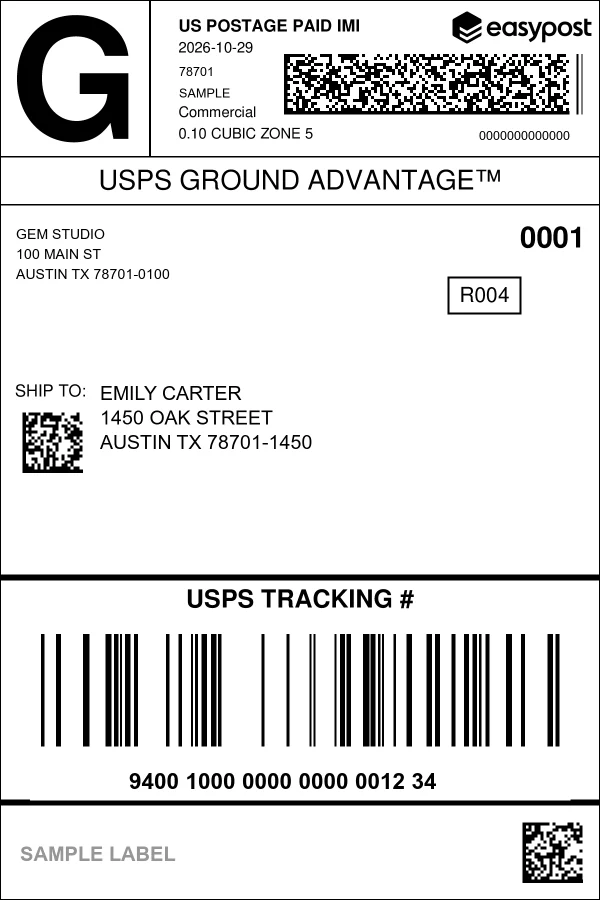
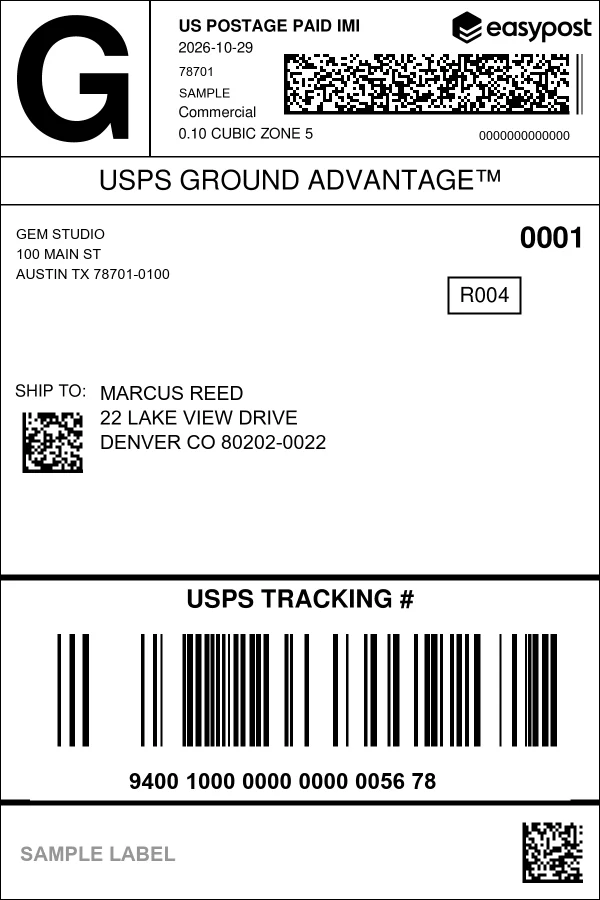
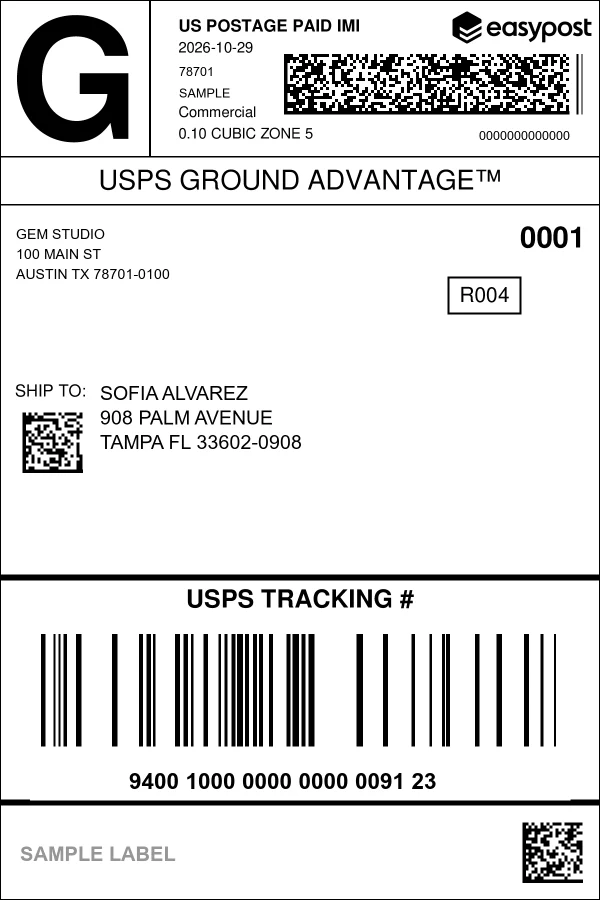
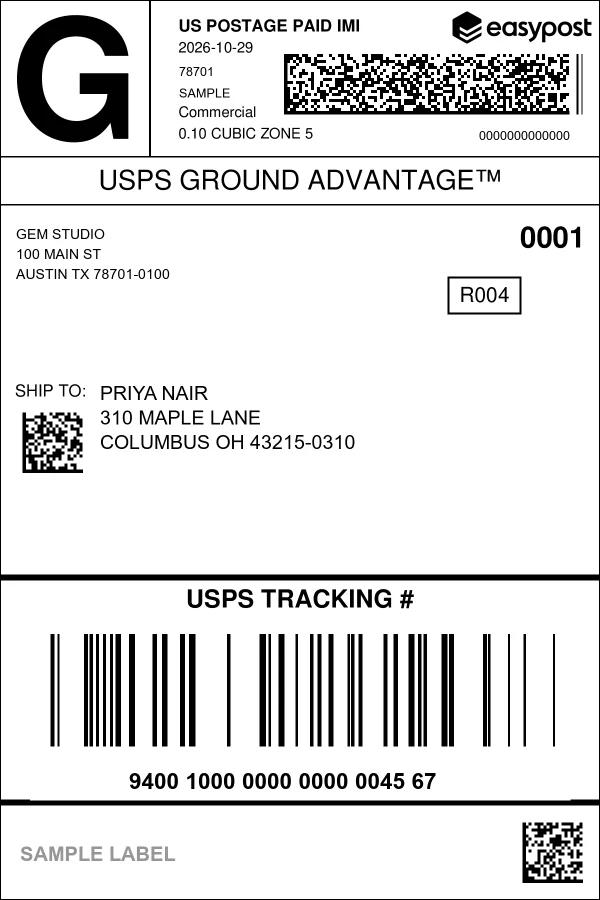
"Print Labels" opens all the labels in one 4×6 PDF, one label per page, ready for your thermal label printer. Four orders, one print job.
Sample labels: addresses and tracking numbers are examples.
How bulk label printing works
The whole batch runs from the Ship your orders screen in SellTrac.
-
Select the orders to ship
Tick the paid invoices that are ready to go. The customer name and shipping address come from the invoice, so nothing is typed twice.
-
Check addresses and packages
Review each shipment's address and package details. Address suggestions help catch typos before a label is bought.
-
Get rates for every shipment
SellTrac requests live carrier rates for each parcel so you can choose the service that fits the order's weight, speed and cost.
-
Buy all labels in one step
Purchase the labels for the whole batch together. Each tracking number is saved back to its invoice automatically.
-
Print them together
Print the successful labels in one run, sized for a standard 4x6 thermal label printer. Orders that need attention are listed separately so one problem never blocks the batch.
Built for sellers who ship every day
Everything you need to move from paid orders to printed labels without leaving SellTrac.
Multiple labels at once
Create and buy labels for many orders in a single batch instead of repeating the same steps for each package.
Orders become shipments
Labels are created from your invoices, so the recipient, address and order reference are already filled in.
Save a batch as a draft
Busy day? Save a shipping draft and come back to finish the batch later without losing your work.
Domestic and international
Run domestic batches and international batches, including the customs details that cross-border parcels need.
Tracking saved automatically
Each purchased label's tracking number is attached to its invoice, so you never copy tracking codes by hand.
Shipping charges in bulk
Add a shipping cost and tax to several invoices at once before you bill your customers.
Who it is for
- Social media sellers who ship many small orders after a live sale or post
- Small e-commerce stores that ship daily from one location
- Businesses that invoice customers first and ship once payment arrives
- Teams that want one place for orders, invoices and labels
What you gain
- Less time per order: no re-typing addresses or tracking numbers
- Fewer address and data-entry mistakes
- A clear list of what shipped and what still needs attention
- Carrier rates compared for every parcel, not just the first one
Frequently asked questions
Straight answers about how this works in SellTrac.
Can I print multiple shipping labels at once?
Do I need to type the addresses again?
What happens if one label in the batch fails?
Which carriers can I use?
Can I ship international orders in bulk?
Explore more of SellTrac
Invoicing, payments and shipping work together, so each step picks up where the last one ended.