

Cards online
Accept credit and debit cards through Stripe or Square.
PayPal, Zelle and Venmo
Let customers pay with the apps and accounts they already have.
Part payments
Customers can pay part of an invoice. The rest stays open until it is paid.
Recorded automatically
Payments are saved on the invoice and its status changes to Paid or Partially Paid.
The payment methods you can offer
Choose which methods appear on your invoices in your payment settings. Only the ones you turn on are shown to your customers.
- Card through Stripe: connect your Stripe account and accept credit and debit cards
- Square: connect your Square account to take card payments
- PayPal: connect your PayPal account and customers pay with PayPal
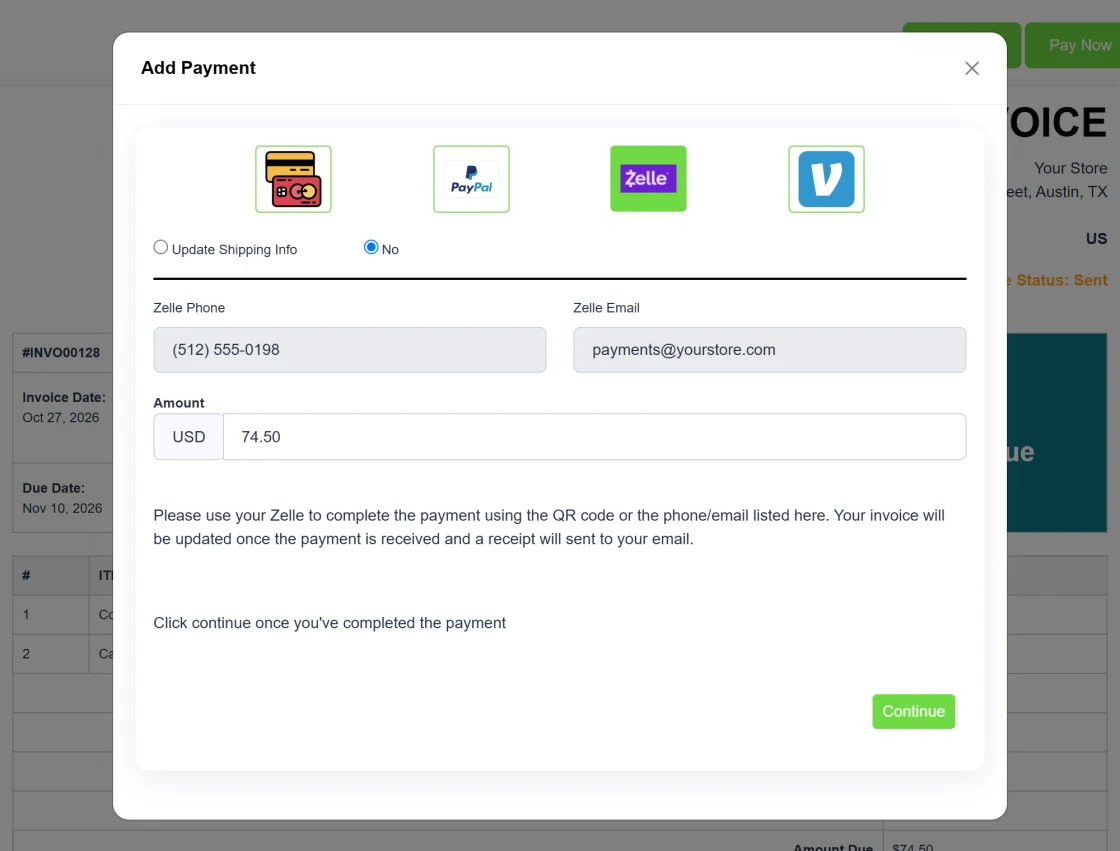
- Zelle and Venmo: customers send the money with the app and you confirm it
How a payment reaches your invoice
Card, PayPal and Square payments are completed online by the customer and recorded on the invoice straight away.
Zelle and Venmo payments happen outside SellTrac, so they are saved as pending until you confirm that the money has arrived. Once you approve the payment, the invoice is updated.
- Online payments recorded on the invoice automatically
- Zelle and Venmo payments wait for your approval
- Part payments tracked until the invoice is fully paid
- Payment receipts for every recorded payment
Secure by design, quick for your customers
Card payments are processed by Stripe or Square, so card details are entered with the payment provider and are not stored by SellTrac. Your Stripe, Square and PayPal accounts are linked with their own sign-in, using the Connect buttons in your settings.
Customers pay from the invoice link itself, with no account to create, and you see the result in your invoice list.
- Card data handled by the payment provider
- Stripe, Square and PayPal linked through their own sign-in
- Pay straight from the invoice link, no customer account needed
- Turn methods on or off at any time
Start taking payments
A few minutes in your settings, then every invoice can be paid online.
-
Open your payment settings
Go to the payment settings in your SellTrac account.
-
Connect or enter your details
Connect Stripe, Square or PayPal, or enter your Zelle or Venmo details.
-
Turn on the methods you want
Only the methods you turn on are shown to customers.
-
Send an invoice
Each invoice you send includes a link to pay online.
-
Confirm and ship
Approve any Zelle or Venmo payments, then ship the order.
Frequently asked questions
Straight answers about how this works in SellTrac.
Which payment methods can my customers use?
Can customers pay an invoice by bank transfer?
Does SellTrac store my customers' card details?
How are Zelle and Venmo payments confirmed?
Can a customer pay part of an invoice?
Do my customers need a SellTrac account to pay?
Everything SellTrac does, in order
Collect the order, invoice it, take it from stock, get paid, then ship it. Each feature picks up where the last one ended.
- 1 Social Media Copy & Paste Sell in posts and live sales, copy the customer comments, paste them into SellTrac and get...
- 2 Invoice Generator Generate itemized invoices with taxes, discounts and shipping, email them with a pay-onlin...
- 3 Inventory Management Manage products and services with SKUs, barcodes, prices and variants. Stock updates autom...
- 4 Payment Gateways You are here
- 5 Shipping Management Fund a shipping wallet, compare carrier rates, buy and print domestic and international la...
- 6 Bulk Label Printing Select many paid invoices, compare carrier rates, buy every label in one step and print th...