

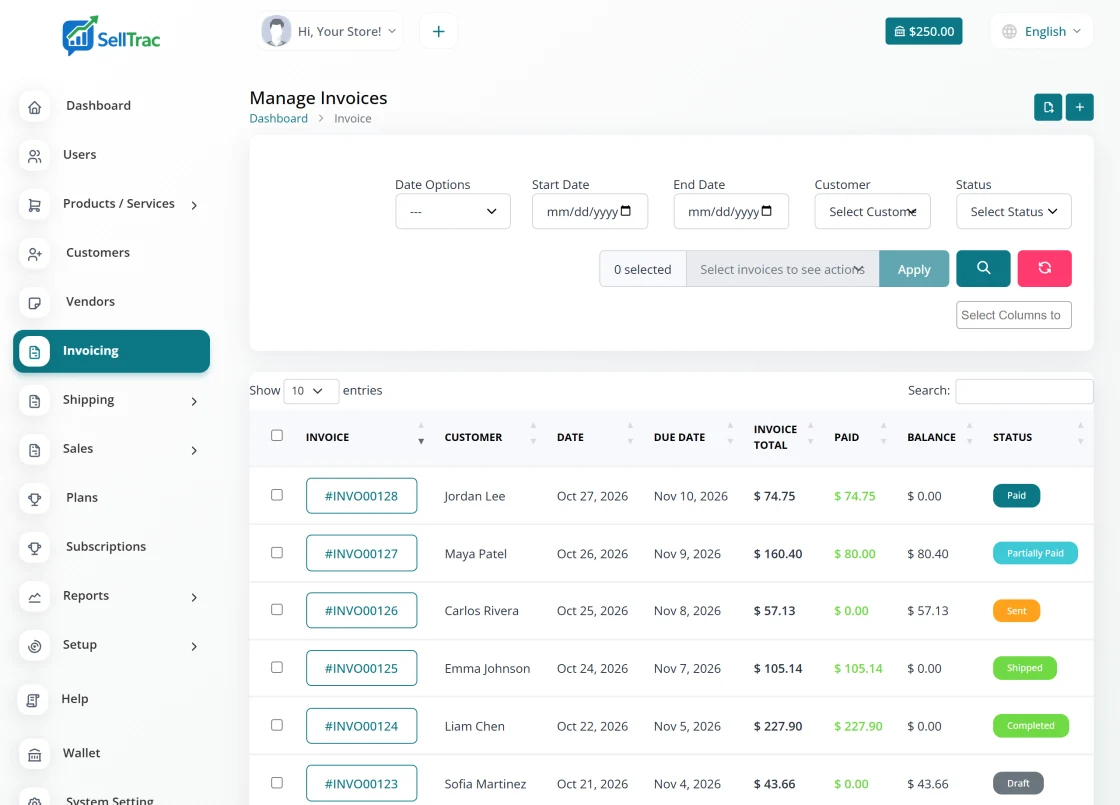
Itemized invoices
Add products or services from your catalog, with quantity, price, tax and discount on each line.
Email and pay online
Send the invoice by email. Your customer opens it and pays with the methods you have turned on.
Many customers at once
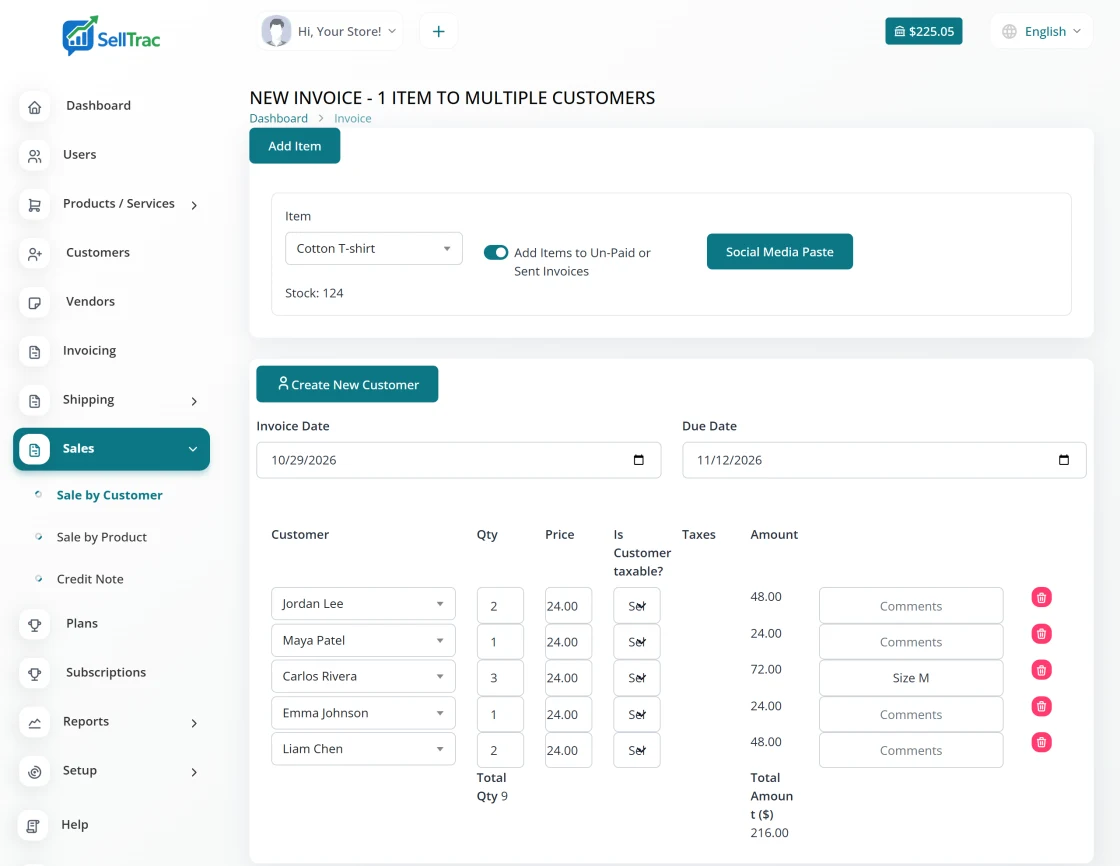
Pick a product once and create a separate invoice for every customer who bought it.
Organized by status
Every invoice is labelled Draft, Sent, Partially Paid, Paid, Shipped or Completed.
Create an invoice in minutes
Choose the customer, add items from your product catalog or type a one-off line, and SellTrac works out the tax, discounts and total for you.
Add shipping charges to the invoice so delivery is paid for together with the order.
- Customer details and shipping address taken from the customer record
- Tax and discount on each line, with the totals calculated for you
- Shipping charges on the invoice, applied one by one or to many invoices at once
- Templates and colors with your logo, and a PDF copy of every invoice
Invoice many customers for the same product at once
Selling one item to lots of people, for example after a live sale or a product drop? Open Sales → Sale by Customer, pick the product once, list the customers who bought it and how many each took, and SellTrac creates a separate invoice for every one of them in a single step.
Example: 20 customers each buy your cotton T-shirt. Instead of building 20 invoices one at a time, choose the T-shirt, add the 20 customers and click Create. You get 20 separate invoices, each with its own invoice number, its own customer and its own total.
Every invoice belongs to one customer only. It carries that customer's details, their quantity and price, and their tax, so nobody is billed for anyone else's order.
- Pick the product once and its price fills in on every customer row
- One separate invoice per customer, each with its own number
- Change the quantity, price or tax for any one customer, and add a note to their line
- Invoice date, due date and notes set once for the whole batch
- Stock reduced by the total quantity sold
How bulk invoicing works
Everything happens on one screen in SellTrac: Sales → Sale by Customer, also under + → New Sale By Customer at the top of every page.
-
Collect orders
Post your product on social media
Share a photo, the price and a short instruction such as "comment your quantity to claim yours". Use a normal post, a group post or a live sale, whatever your customers already follow.
- Ask buyers to comment with their quantity
- Add the product to SellTrac once, with its price
Gem StudioJust now · Public Example postNew drop: Amethyst 14 x 8 oval cabs, set of 3 for $15. Comment your quantity to claim yours!
💜 👍 485 comments -
Customer inquiries
Customers comment with what they want
Each buyer replies with a quantity, for example "2" or "2 amethyst". There is nothing for them to install or sign up for: they order the way they already talk to you.
Keep selling while the comments come in. You don't need to stop and write anything down.
ECTop fanEmily Carter2 amethystLike · Reply · 3mMRMarcus Reed1Like · Reply · 3mSASofia Alvarez3 amethystLike · Reply · 2mDBDaniel Brooks1Like · Reply · 2mPNTop fanPriya Nair2 amethystLike · Reply · 1m -
Copy
Select the comments and copy them
When the sale ends, select the comments on the post and copy them (Ctrl + C, or long-press and Copy on a phone). Copy everything, extras included; SellTrac sorts it out in the next step.
- No app connection or social media login needed
- Works with comments or order messages copied as text
Top fanEmily Carter2 amethystLike · Reply · 3mMarcus Reed1Like · Reply · 3mSofia Alvarez3 amethystLike · Reply · 2mDaniel Brooks1Like · Reply · 2mTop fanPriya Nair2 amethystLike · Reply · 1mComments copied Ctrl+C -
Paste into SellTrac
Paste, and SellTrac finds each buyer and quantity
Open "Invoice for multiple customers", choose the product you sold, then click Social Media Paste and paste the comments.
SellTrac skips extras like "Top fan", "Like" and "Reply", and keeps each customer's name with the quantity on the next line. If a customer mentions the product, for example "2 amethyst", the product you chose for this sale is used.
- Check the list before anything is created
- Existing customers are matched; new names are added as new customers
SellTrac · Social Media PasteReal SellTrac screen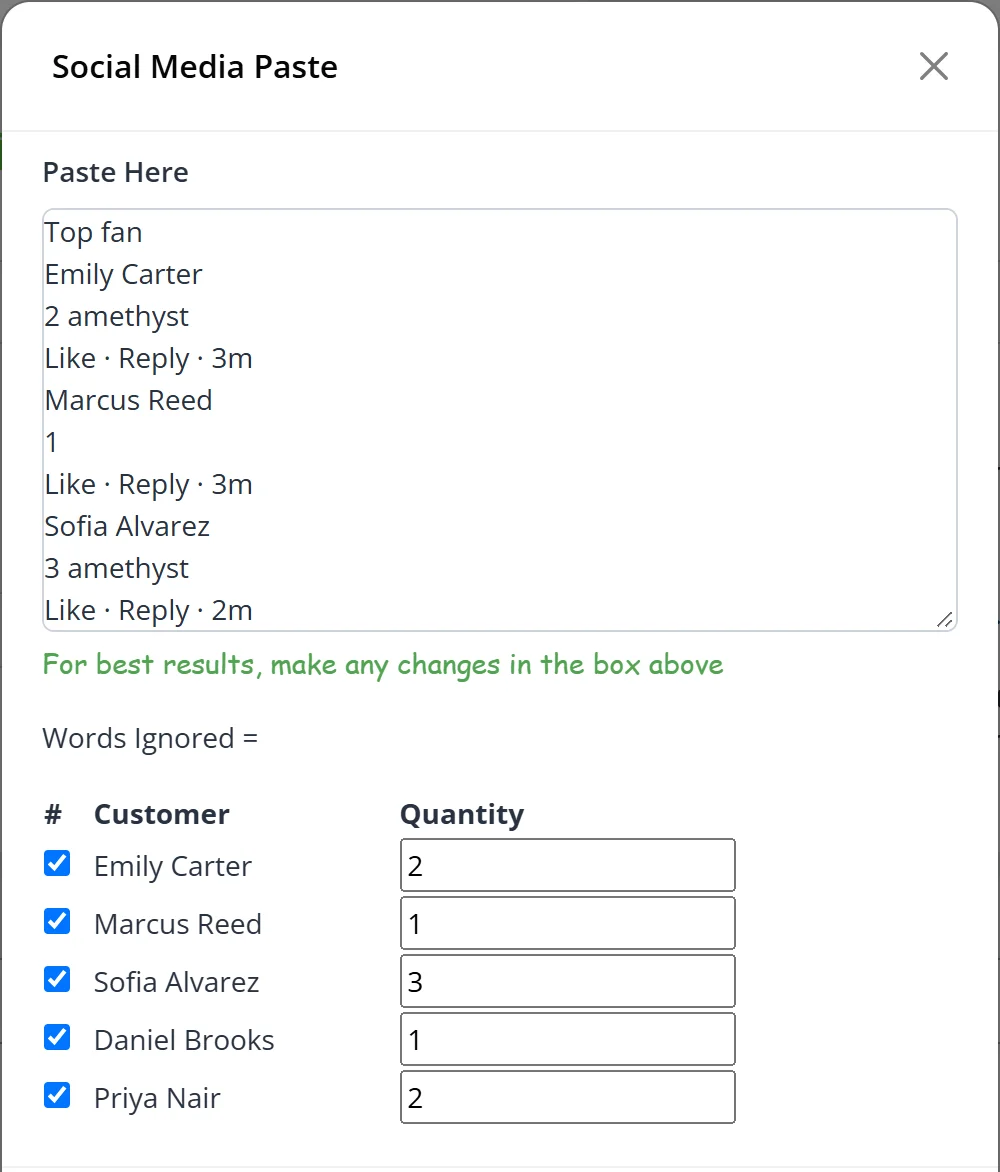
-
Invoices generated
Every invoice is created for you
Each customer gets their own invoice with the product, quantity and price filled in, totalled and ready to send. Five comments became five invoices in one step.
- Invoices
- 5
- Items
- 9
- Total
- $135
SellTrac · Invoice for multiple customers · Amethyst 14 x 8 oval cab, set of 3Real SellTrac screen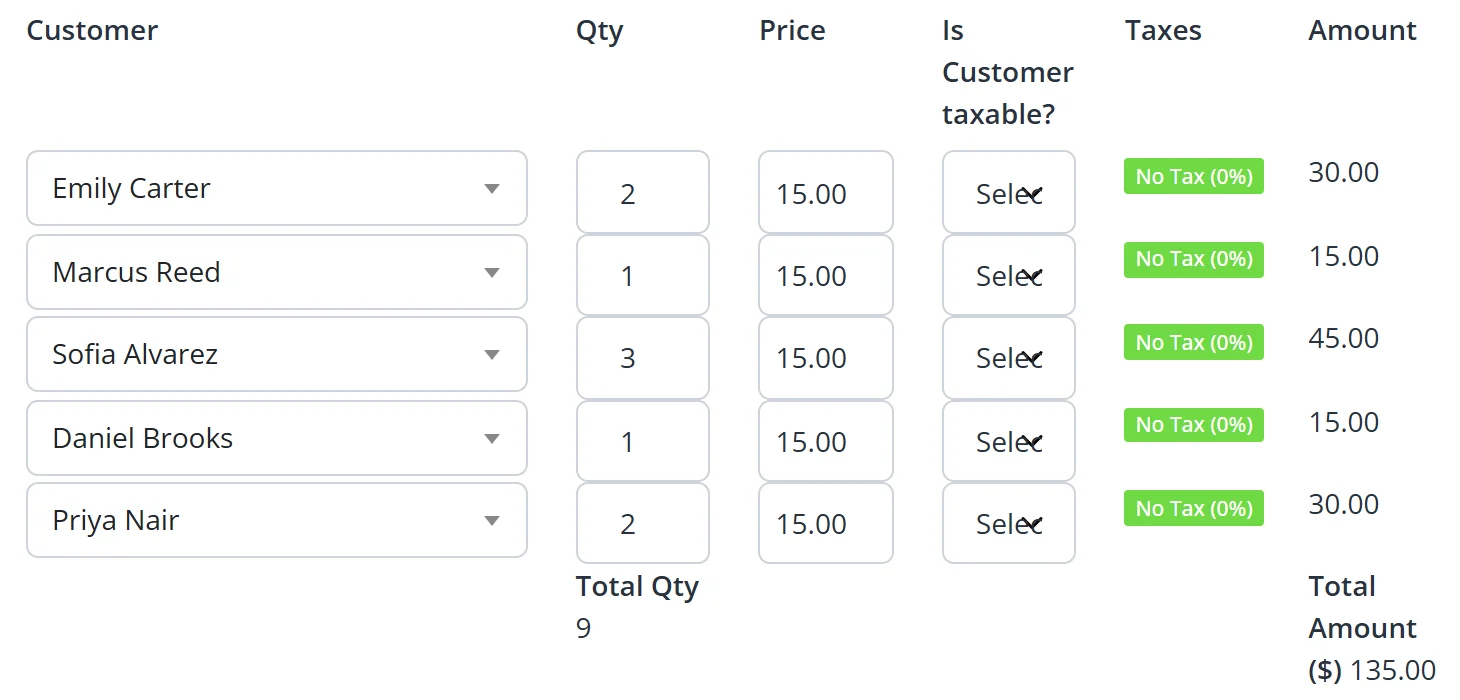
-
Get paid
Send each customer a payment link
Click "Copy Invoice Link" and paste it into your reply or a direct message. The customer opens the invoice and pays online, and the payment is recorded against it automatically.
Paid orders then move on to shipping, where you can print every label in one go.

One link per customer, shared where they already are.
Send it, get paid, keep the record straight
Email the invoice straight from SellTrac. Your customer gets a link to view it and pay online with the payment gateways you have turned on.
When a payment arrives it is recorded on the invoice and the status changes by itself, so you never update a spreadsheet by hand.
- Send and resend invoices by email
- A pay-online link on every invoice
- Part payments tracked until the balance is cleared
- Payment reminders for invoices that are still open
- Payment receipts, and credit notes when an invoice needs correcting
Keep every invoice organized
The invoice list shows each invoice with its customer, dates, amount due and status. Search it, filter it and act on many invoices at once.
- Statuses: Draft, Sent, Partially Paid, Paid, Shipped and Completed
- Update the status of many invoices at once, or delete them in bulk
- Merge several invoices into one
- Duplicate an invoice to reuse it for a repeat order
- Invoice summary report with CSV export
From order to paid invoice
The same steps every time, whether you send one invoice a week or fifty a day.
-
Add your products and customers
Set up your catalog in inventory management and save your customers once.
-
Create the invoice
Pick the customer, add items and shipping, and check the total.
-
Send it
Email the invoice. Your customer can view it and pay online.
-
Get paid
The payment is recorded on the invoice and its status moves to Paid or Partially Paid.
-
Ship it
Buy the shipping label from the paid invoice with shipping management.
Frequently asked questions
Straight answers about how this works in SellTrac.
Can I create invoices for many customers at once?
Does each customer get their own invoice?
Can I put several products on bulk invoices?
Can customers pay my invoices online?
Can I add shipping charges to an invoice?
Can I change how my invoices look?
What happens if a customer pays only part of an invoice?
Do invoices update my stock?
Everything SellTrac does, in order
Collect the order, invoice it, take it from stock, get paid, then ship it. Each feature picks up where the last one ended.
- 1 Social Media Copy & Paste Sell in posts and live sales, copy the customer comments, paste them into SellTrac and get...
- 2 Invoice Generator You are here
- 3 Inventory Management Manage products and services with SKUs, barcodes, prices and variants. Stock updates autom...
- 4 Payment Gateways Connect Stripe, PayPal, Square, Zelle or Venmo and let customers pay invoices online. Paym...
- 5 Shipping Management Fund a shipping wallet, compare carrier rates, buy and print domestic and international la...
- 6 Bulk Label Printing Select many paid invoices, compare carrier rates, buy every label in one step and print th...